LibreOffice Calc: Powerful, Free, and Open-Source Spreadsheet
21ˢᵗ Aug 2024
LibreOffice Calc stands out as a robust and cost-free spreadsheet program within the LibreOffice package. This open-source option rivals other spreadsheet software like Microsoft Excel, offering similar features while emphasizing ease of use and upgrades driven by its user base. LibreOffice Calc provides an extensive set of tools to handle data management, carry out statistical analyses, or generate intricate graphs.
Getting to Know the LibreOffice Calc Layout
Opening LibreOffice Calc for the first time reveals a user-friendly setup aimed to simplify spreadsheet tasks. The main toolbar at the top is split into several sections, each presenting different choices to arrange and work with your data. Here’s a breakdown of the key components:
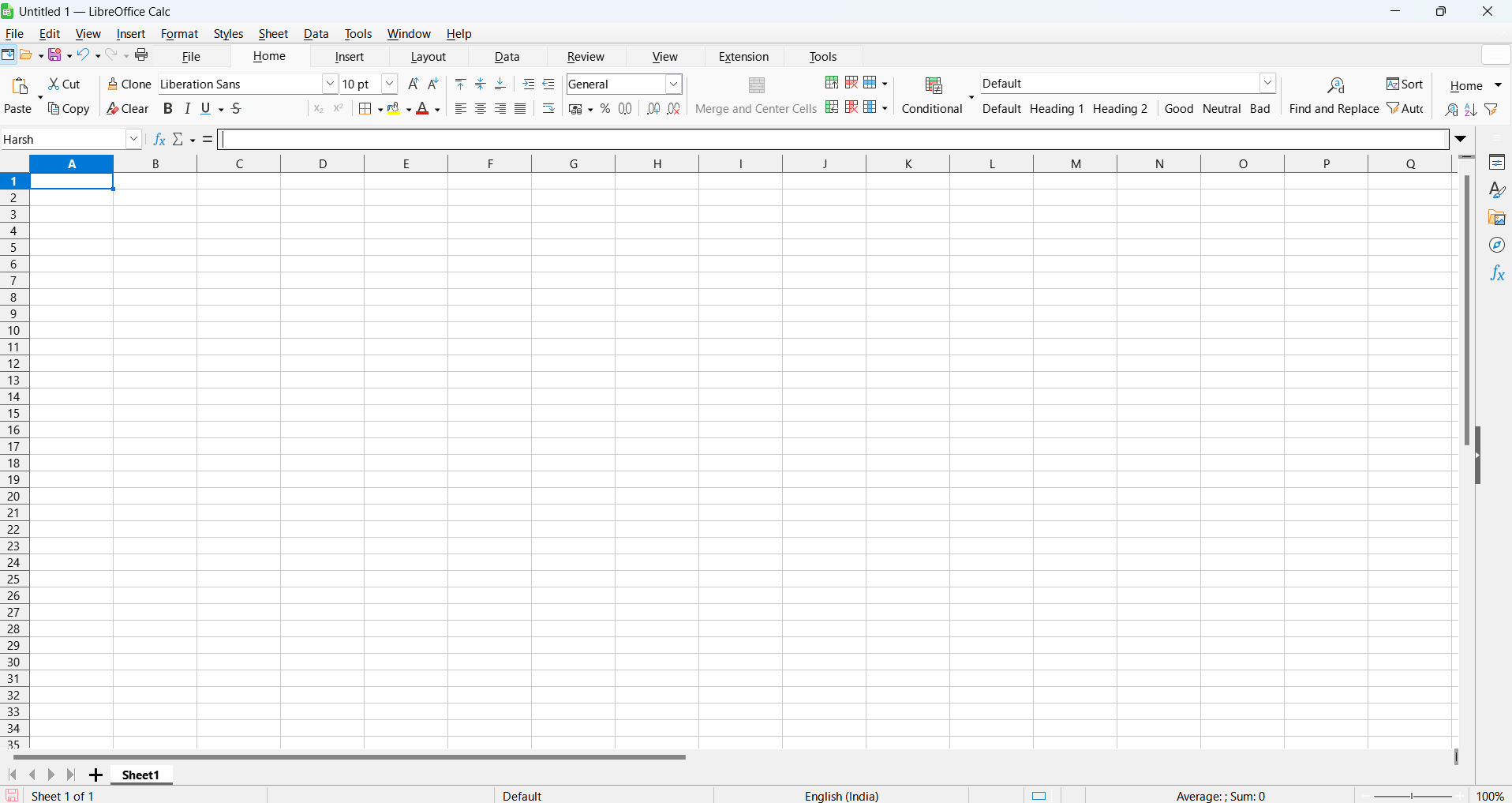
Home Section
The Home section in LibreOffice Calc houses common tools for basic data input and formatting. Here’s what you can do from this section:
- Clipboard: Choices like Cut, Copy, Paste, and Clone Formatting tool for moving and copying data.
- Font: Change the look of your text by picking the type, size, color, and style. You can also make words stand out with bold, italic, underline, or strikethrough.
- Alignment: Choose how your text sits in cells, including side-to-side and top-to-bottom alignment, or even tilting it.
- Number Formatting: Display numbers in different ways, such as money, percentages, dates, or create your own style.
- Cell Styles: Use ready-made designs to make your data look neat and consistent throughout your sheet.

Insert Tab
The Insert tab gives you options to add new elements to your spreadsheet:
- Rows and Columns: Add new rows and columns to your spreadsheet without hassle.
- Charts: Build different types of charts to display your data.
- Hyperlink and Define Names: Insert links for easy navigation, assign names to cell ranges for simpler formulas, and manage those names for better organization.
- Images: Insert pictures from your computer or the internet.
- Shapes: Include shapes, lines, and other drawn elements in your spreadsheet.

Layout Tab
The Layout tab helps you manage how your spreadsheet looks on screen and in print:
- Page Setup: Customize layout settings, including page format, margins, headers, footers, page breaks, and switch between different views for a professional setup.
- Print Area and Insert Sheet, Row, Column: Define print area and add new sheets, rows, or columns to organize your data.
- Spreadsheet Theme, Table Styles, Sheet Events: Apply themes and styles for a consistent look and automate tasks with sheet events.
- Select, Rotate, Group, Align Objects: Manipulate objects within your spreadsheet, including selecting, rotating, grouping, or aligning them for better design control.

Data Tab
The Data tab offers tools to manage and analyze your data:
- Data Provider: Quickly add and update external data sources.
- Recalculate: Update all your formulas to reflect the latest data.
- Pivot Table: Summarize and analyze large data sets.
- Sort & Filter: Enable deeper analysis by sorting and using filters.
- Group & Subtotals: Combine data into groups and compute subtotals automatically.
- Define & Select Range: Name and easily reference specific data ranges.

Review Tab
The Review tab helps with teamwork and finalizing your spreadsheet:
- Spell Check: Look for spelling mistakes.
- Track Changes: Monitor edits made by different users.
- Comments: Add notes or feedback in cells.
- Protect Document: Guard your spreadsheet with a password or limit who can edit it.

View Tab
The View tab controls how you see your spreadsheet:
- Zoom: Change the zoom level of your spreadsheet.
- Freeze Panes: Keep some rows or columns in place while scrolling.
- Gridlines: Turn gridlines on or off.
- Full Screen: Make your spreadsheet take up the whole screen.

Extension Tab
The Extension tab lets you add more features to LibreOffice Calc:
- Extension Manager: Manage installed add-ons or get new ones.

Tools Tab
The Tools tab offers advanced options for skilled users:
- Goal Seek: Fix equations by adjusting input values.
- Macros: Save and play back actions to speed up tasks.
- Solver: Solve complex problems using various methods.
- Options: Customize how Calc looks and functions.

Cheatsheet for LibreOffice Calc
Download and Support LibreOffice
You can get LibreOffice, with Calc included, at no cost from the main website: Download LibreOffice 
LibreOffice grows thanks to its users. If you find it helpful, consider supporting the project in the following ways:
- Get Involved with the Community : Join conversations, help with documentation, or assist in development.
- LibreOffice Source Code : Explore or contribute to the source code.
- Donate to LibreOffice : Support the LibreOffice project with a donation.
Song of the day
Here's song 🎵 of the day to freshen up your mood: